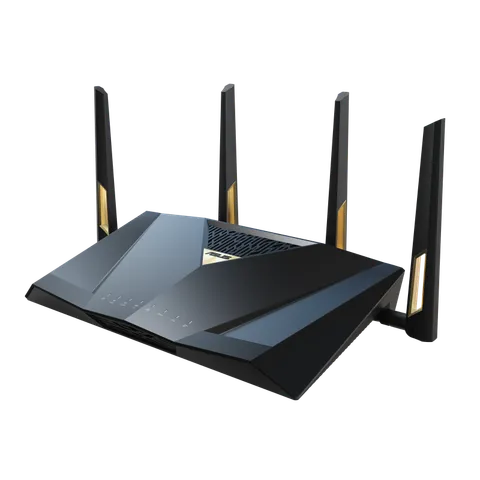
Short answer: the simplest backup is a phone hotspot that you switch to by hand. If you need the switch to happen without you, we’d use a router with dual WAN set to failover, with a second connection that won’t fail at the same time as your main one. Either way, test the backup before you need it.
First make sure the problem really is your internet connection rather than your Wi-Fi: Wi-Fi keeps disconnecting walks through telling the two apart.
Option 1: a phone hotspot
A phone with a data plan can share its connection as a temporary Wi-Fi network. Apple describes its Personal Hotspot as using an iPhone or cellular iPad’s mobile data connection to do exactly that, and notes that it needs a carrier that supports it and that additional fees may apply.
There’s no extra hardware, but check whether your plan includes hotspot data or charges for it before an outage, not during one. You also switch over by hand, and only the devices you move to the hotspot are covered. This guide uses Apple’s documentation as the example; for an Android phone or a dedicated mobile hotspot, check that device’s own instructions.
Option 2: automatic failover with dual WAN
Some routers can be connected to two internet sources. ASUS calls this dual WAN: you choose a primary and a secondary connection. In failover mode, ASUS says the router checks the primary by periodically sending DNS queries or pinging the gateway or an address you choose. If the primary fails, the router moves to the secondary, and an optional failback setting switches back when the primary returns.
The second connection can plug in several ways. ASUS lets the secondary be the router’s WAN port, a USB device, or one of its LAN ports set to act as WAN. On ASUS routers, a USB port is where a cellular modem stick can connect: on its RT-BE88U, for example, ASUS lists Dual WAN and a 3G/4G LTE dongle among the internet connection types. Check your own router’s specifications for “dual WAN” or “failover” before buying anything else.
Two limits from ASUS’s documentation are worth knowing: its dual WAN works with IPv4 only, and it can’t be combined with WAN aggregation.
Failover, not load balancing
ASUS’s dual WAN offers two modes. Failover keeps the second connection in reserve; load balancing uses both at once. ASUS warns that in load-balancing mode, DDNS and port forwarding may not work normally, because they are tied to the primary connection.
Choosing and testing the second connection
The failover settings live in the router’s WAN or internet section; see how to log in to your router. If you’re not sure which box on your network is the modem and which is the router, start with modem vs router.