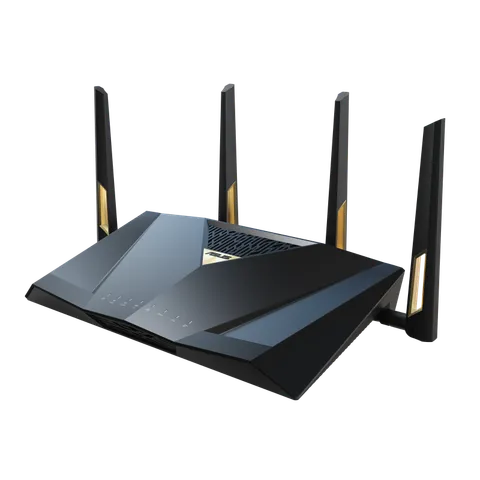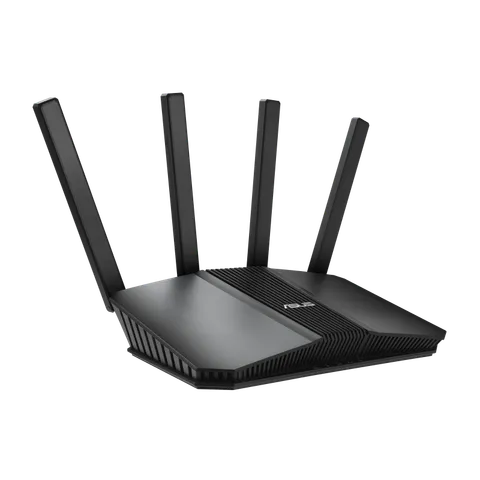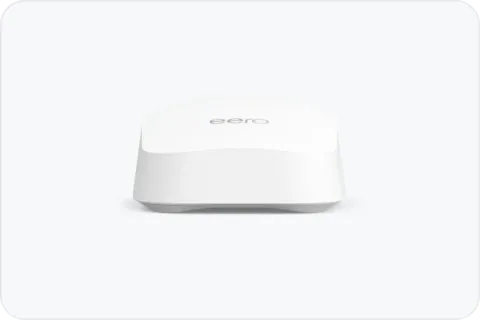
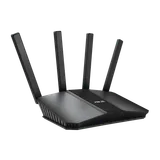
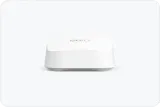
Three routers made this list:
- ASUS RT-BE88U if you want content filtering without a subscription. It combines web and app filters, schedules and Safe Browsing.
- ASUS RT-BE58U on a smaller budget. It has schedules and Safe Browsing, but ASUS doesn’t list category filters for this model.
- eero 7 if you’d rather manage everything in an app. Profiles, schedules and pausing are included; content filters need eero Plus.
We haven’t tested these routers ourselves. We picked them from the manufacturers’ own documentation against the criteria below. All three come from product lines with a current FCC Conditional Approval.
What router controls can and can’t do
Router parental controls cover every device on your Wi-Fi, including consoles and smart TVs that have no controls of their own. They work best for schedules (“no internet after 9 pm”) and broad content categories. They’re weaker at fine control. ASUS, for example, says its routers don’t support blocking specific websites for a single device. Controls set at the router also stop working when a phone switches to mobile data.
Controls also depend on the router doing the routing. ASUS says its parental controls work only in router mode, not in access point mode. So if your ISP’s gateway does the routing and your ASUS router sits behind it as an access point, its controls won’t apply.
Free vs subscription
This is where routers differ most.
- ASUS says its router parental controls are offered through a free subscription. That covers age-based presets, content filtering and time scheduling. Its category-based Web & Apps Filters are available on select models only.
- eero says all users can group devices into profiles, schedule when those devices can connect, and pause them outside the schedule. Content filters, set per profile with categories such as social media and streaming, are an eero Plus subscription feature.
The criteria that decide it
- The controls you’ll actually use. If schedules and pausing are enough, any of the three will do. If you want category filters, choose the RT-BE88U or plan on eero Plus.
- Subscription or not. The ASUS picks need none for their listed controls. eero needs one for filters.
- Profiles. Grouping devices by child makes rules much easier to manage than setting them device by device. Both brands support profiles.
- Verifiable US regulatory status. As of the FCC’s notice of 9 September 2026, ASUS RT routers held an FCC Conditional Approval running to 6 March 2028, and eero routers one to 31 October 2027. See the FCC router rule explained.
How the three compare
ASUS lists Web & Apps Filters, Time Scheduling and Safe Browsing among the RT-BE88U’s parental controls, with up to 64 profiles. It’s also on our best routers for multi-gig internet for its multi-gig ports.
For the RT-BE58U, ASUS lists Time Scheduling and Safe Browsing. Web & Apps Filters isn’t in its specification.
eero lists the eero 7 as a BE5000 dual-band Wi-Fi 7 router with two 2.5 GbE ports. eero claims up to 2,000 sq ft of coverage per unit. Profiles and schedules are set up in the eero app.
Why this list is short
We only include routers whose parental-control features and subscription terms we could confirm in the manufacturer’s own documentation, and whose US regulatory status we could match to a dated FCC notice. Three met that bar when this page was written. A dedicated parental-control router brand is left out until its specifications and subscription terms can be verified. Prices aren’t listed because they change constantly. Each “Check price on Amazon” button opens that model’s Amazon listing or a search for it. To find out what’s connected now, see how to see who’s on your Wi-Fi. To keep smart-home gadgets apart from family devices, see guest and IoT networks, and for the rest of the setup, how to secure your router.