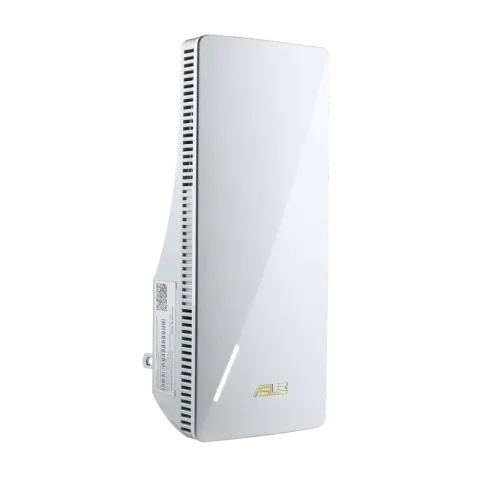
Short answer: start with where the extender sits. NETGEAR and ASUS both put it about halfway between the router and the place you need Wi-Fi. NETGEAR adds that it must still be inside the router’s range. An extender at the edge of that range causes most of the symptoms below: setup that keeps asking for the password, devices that get no internet, and slow speed. Move it closer, update its firmware, and check the router settings that can block it.
Check the extender’s link to the router
An extender can only pass on what it receives, so look at its link to the router first. Many extenders have a light for it. On ASUS’s RP-AX56 and RP-AX58, solid white means a good signal to the router, solid yellow means weak and solid red means no signal. Other models use different colours, so check yours in its manual. If the link is weak, move the extender a room closer to the router and check again before trying anything else.
Setup fails or keeps asking for the password
- The password prompt keeps coming back. If you’re sure the password is right, NETGEAR says the extender is probably at the edge of the router’s signal, and moving it closer will most likely fix it. Set it up near the router, then move it out to its final spot.
- It drops off the router during setup. NETGEAR suggests changing the router’s wireless settings and updating the firmware on both the router and the extender. How to update router firmware covers the router side.
- Your router still uses WEP. NETGEAR says its push-button WPS setup only works with WPA or WPA2 security, so with WEP you have to set up through a browser or its app. WPA2 vs WPA3 explains the newer security options.
You can’t open the extender’s setup page
For its extenders, NETGEAR’s checklist is:
- Set your computer to get its address automatically (DHCP), not a static IP.
- Check the Client Link light is solid green, which means your device has a good link to the extender.
- Open www.mywifiext.net, or the extender’s default address 192.168.1.250, or whatever address your router gave it.
NETGEAR lists the default login as “admin” and “password”. Other brands use different addresses, which their manuals list.
Devices connect but get no internet
When devices join the extender but don’t get an address, NETGEAR’s steps are: check the Wi-Fi password on the device, restart the extender and the router, move the extender closer to the router and the device closer to the extender, then turn the device’s Wi-Fi off and on.
If your router uses a MAC address filter or reserved addresses, there’s a catch. NETGEAR says its extenders change the first part of each device’s MAC address to 02:0F:B5. A router that only lets in listed addresses, or hands a device a reserved IP address, won’t recognise the device through the extender. NETGEAR’s fix is to add the translated addresses on the router. For a filter, turn the filter off, connect the devices through the extender, then add every address beginning 02:0F:B5 that the router shows before turning the filter back on.
If nothing at all gets online, including devices on the main router, the problem isn’t the extender: see Wi-Fi connected but no internet.
It works, but it’s slow
- Recheck the spot. Halfway is a starting point. ASUS adds that an elevated, open position away from walls and metal works best. How to check your Wi-Fi signal strength shows how to compare spots with a number rather than a guess.
- Don’t chain extenders. NETGEAR says you can connect more than one extender to the router, but not one extender to another. Chaining isn’t supported and affects performance for devices on the second extender.
- Router settings. For its Nighthawk tri-band extender, NETGEAR suggests a higher 5 GHz channel on the router (149 to 165), its One WiFi Name option, and all of the router’s radios turned on. Wi-Fi channels explained covers channel choice.