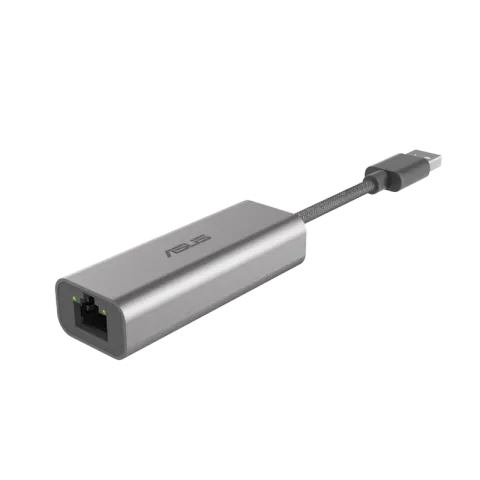
Short answer: use a USB Ethernet adapter. ASUS notes that some thin and light laptops have no RJ-45 network port, so they need a USB to Ethernet adapter to use a wired network. Apple gives the same advice for Macs: if the Mac has no Ethernet port, use an Ethernet adapter, such as a USB-C to Ethernet adapter on its Thunderbolt or USB-C ports. Pick one that fits a free port on your laptop and suits the router port it will plug into.
Step 1: check which ports you have
Look along both sides of the laptop. You’re looking for one of two kinds of port:
- USB-A: the flat, rectangular USB port.
- USB-C or Thunderbolt: the small oval port. Some thin laptops have only these.
Apple’s guide to the ports on a Mac notes that on some iMac models the Ethernet port isn’t on the computer at all but on its power adapter, so check there before buying anything for an iMac. For a Windows laptop, check its manual or the maker’s spec page if you’re not sure which ports it has.
Step 2: pick an adapter that fits
An adapter has a USB plug on one end and an Ethernet port on the other. Two things decide which one you need.
The plug. Match it to a free port: a USB-A adapter for a USB-A port, a USB-C adapter for a USB-C or Thunderbolt port. Apple recommends a USB-C to Ethernet adapter for Macs with USB-C or Thunderbolt ports.
The speed. Many home routers have gigabit (1 Gbps) Ethernet ports, and many adapters are gigabit too. Some run at 2.5 Gbps. ASUS’s USB-C2500, for example, has a USB 3.2 Gen1 Type-A plug and an Ethernet port that runs at 100, 1,000 or 2,500 Mbps. ASUS also notes that the real USB speed depends on the computer it’s plugged into, and its spec page doesn’t list which operating systems the adapter supports, so check that with ASUS for your laptop.
Step 3: plug in and check
- Plug the adapter into the laptop, and an Ethernet cable from the adapter into a free port on your router (or mesh unit).
- Wait a few seconds. On Windows, the network icon in the taskbar changes to show a wired connection instead of the Wi-Fi bars; ASUS’s Windows guide shows each icon. On a Mac, check the adapter shows as connected in your network settings.
- If your provider gave you a user name and password to sign in, ASUS’s Windows guide has the steps to enter them.
If the cable is plugged in but the connection is slow or shows 100 Mbps, Ethernet stuck at 100 Mbps covers the causes and fixes.