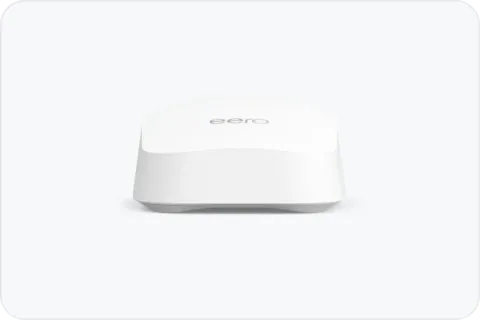
Short answer: on eero or Google Home, ask to be added as an admin, then manage your relative’s network from your own phone. Both have invites for this, so nobody has to share an account or password. On an ASUS router, you add it to your own app while you’re on its Wi-Fi, using the router’s login, and remote access needs extra setup. Either way, the easiest time to set it up is during a visit.
If you want to reach your own home network while you’re away, that’s a different job: see remote access to your home network.
eero: Multi-Admin
eero’s Multi-Admin feature lets the network owner add up to 10 admins. Each admin needs the eero app and an eero account. The owner opens the eero app, taps Settings > User permissions, taps the plus icon, then Invite admin, and shares the QR code or an invite link. eero says the code and link expire after 48 hours.
According to eero, an admin can:
- view all network details, including connected devices and profiles
- pause or block devices, and manage profiles and scheduled pauses
- add or remove eero units, except the gateway eero
- change the Wi-Fi name and password, and adjust eero Plus content filters
Admins can’t add or remove other admins, transfer ownership or delete the network; only the owner can manage admins. Once you’ve accepted, your relative’s network appears in your eero app under Settings, then the more-options icon, then Switch network.
Google Home: invite a home member
Google Wi-Fi changes are made in the Google Home app; Google says the Google Wifi app is currently read-only. To invite you, your relative taps Add > Home Member in the Google Home app, enters your name or email address, and chooses Admin or Member. You get an email invitation.
Google describes Admin as full control of people, devices and services, and Member as limited control that can’t add, manage or remove people. Google says home members can change the Wi-Fi password, turn Wi-Fi access on and off for specific devices, and add or remove other members, and advises inviting only people you trust.
ASUS: add the router on a visit, then set up remote access
ASUS’s documentation describes adding a router to your own app rather than inviting a second admin. To add your relative’s router, your phone has to be connected to that router’s Wi-Fi, and you sign in with the router’s login name and password.
Managing it from your own home afterwards needs ASUS’s remote access, which is easiest to set up while you’re there. ASUS lists conditions:
- The router needs a public WAN IP address from the ISP. Behind a private address or more than one layer of NAT, ASUS says the feature won’t work properly. Our double NAT guide explains what that means.
- In the app, ASUS says to set up DDNS and link an account first, then turn on Settings > System Settings > Remote Connection.
- Web access from outside is under Administration > System > Remote Access Config, uses HTTPS on port 8443 by default and works over IPv4 only. ASUS says browsers show a warning because the router’s default certificate is self-signed.
If the remote connection fails, ASUS suggests checking that Remote Connection is on, testing remote access to the web interface, updating the router firmware and the app, and trying from a different network.
Other routers
If your relative’s router has no shared-admin feature, check whether its maker’s app supports remote management. How to log in to your router shows where the router’s own settings are.